Import and continue
Import screenshots and images from your photo library, paste images, and continue editing recent projects.
Premium visual scene maker
Import a screenshot, choose a clean visual style, add frames, annotations, highlights, privacy masks, stickers, and export a polished image for social media, product updates, app previews, documentation, support messages, or presentations.



Download
annotations, stickers, frames
Turn iPhone screenshots into polished visuals. Add frames, annotations, and backgrounds, blur sensitive info, and export for social media. Free on iOS.
Screenshots
Real screens from the App Store listing.
How it works
ShotLab takes a raw iPhone screenshot from your photo library to a polished, share-ready visual in four quick steps.
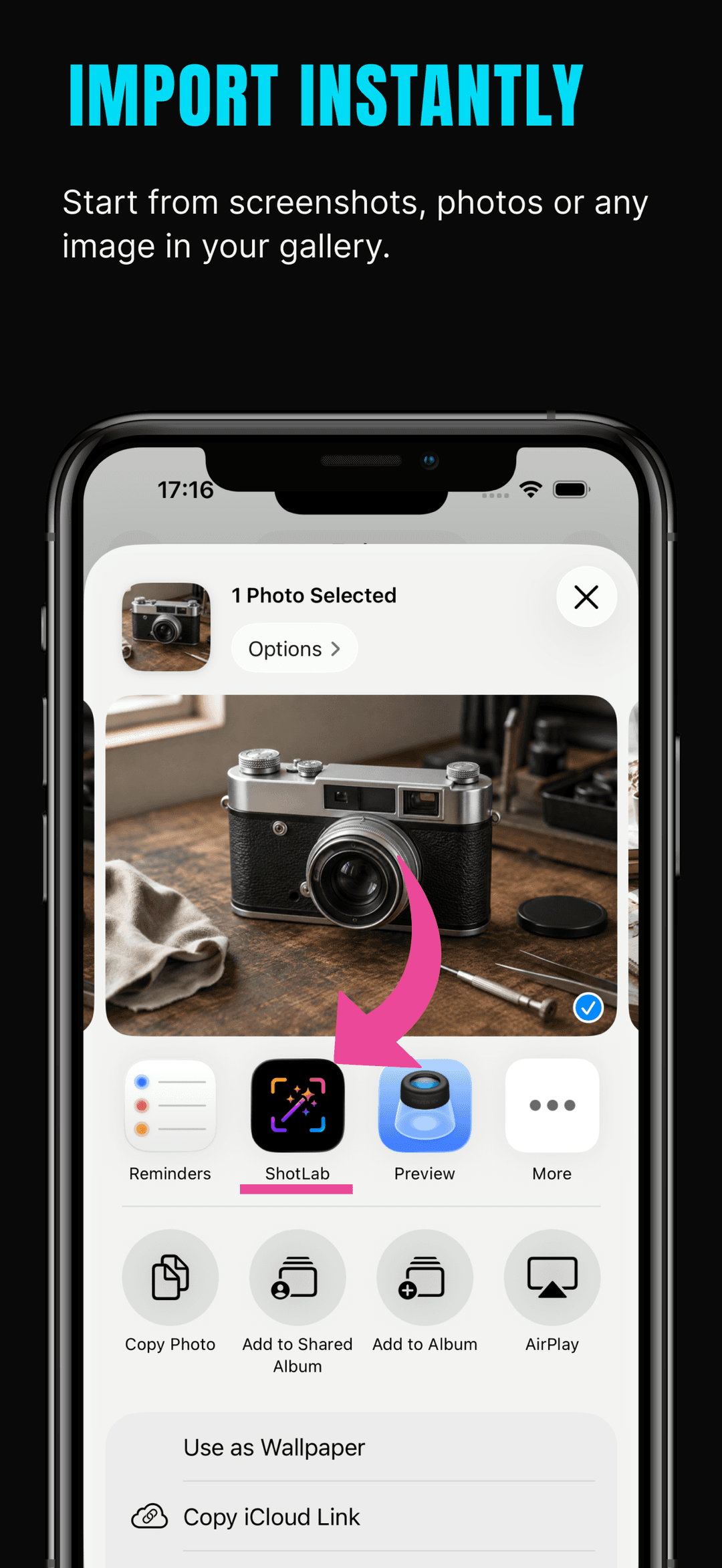
Bring in any screenshot or image from your photo library, paste one from the clipboard, or send it straight to ShotLab from the iOS share sheet. Recent projects stay available so you can keep editing.
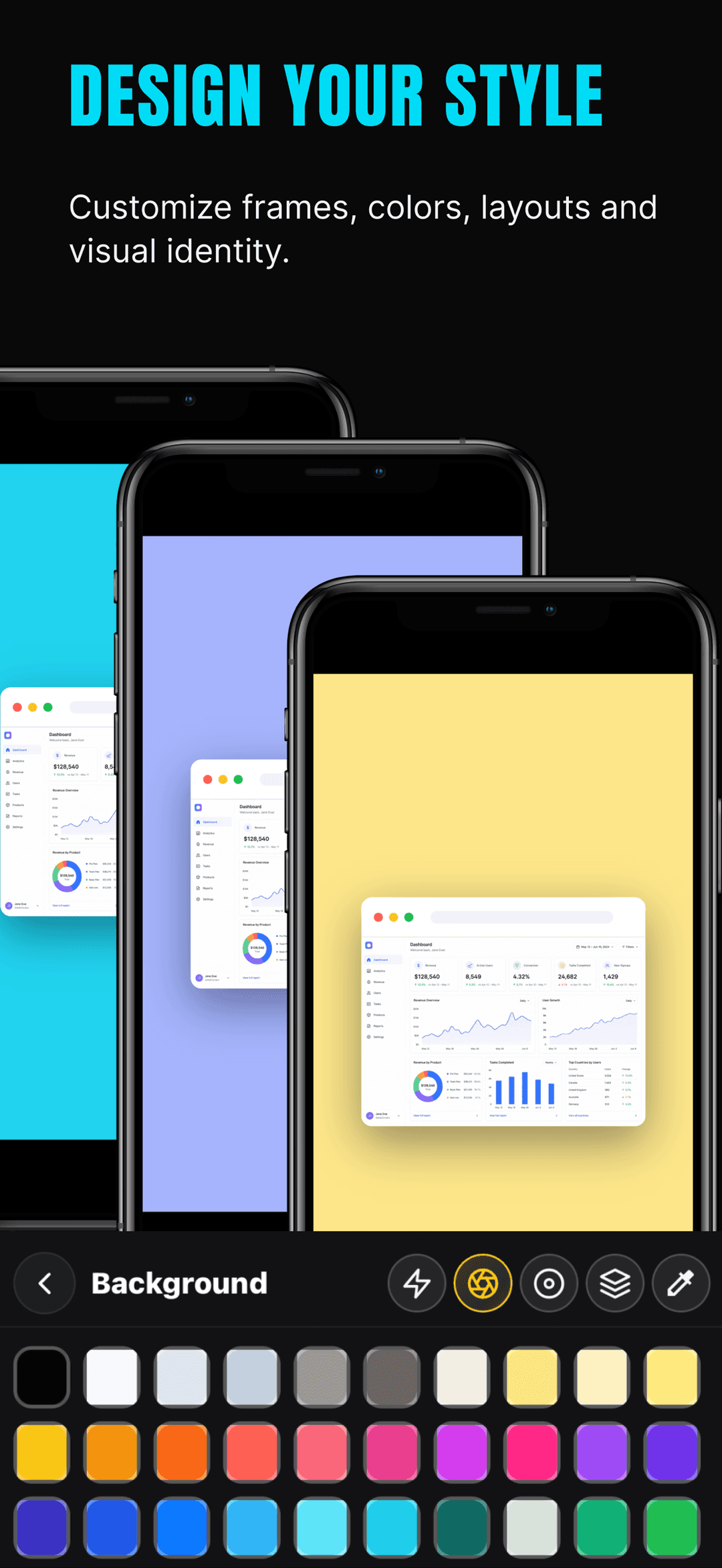
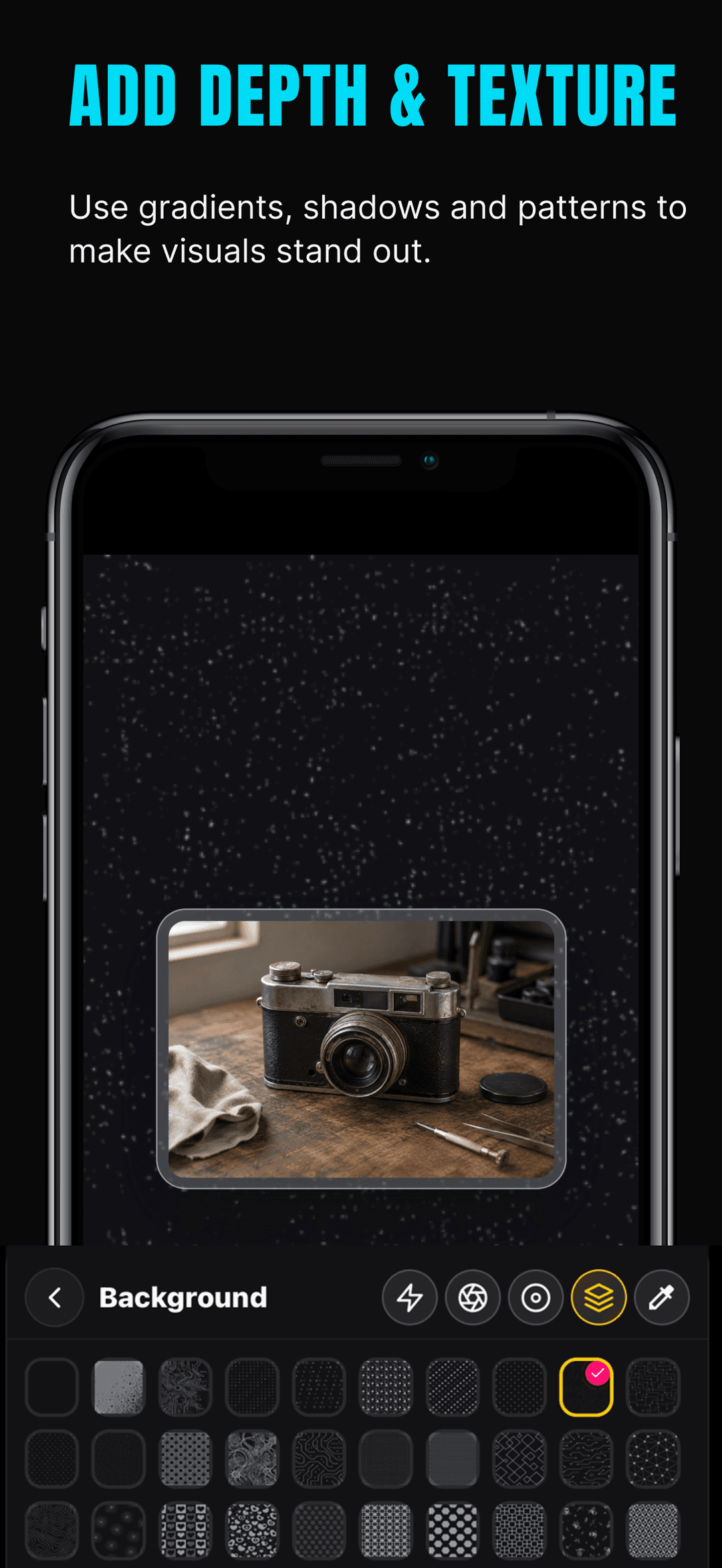
Choose a ready-made look or build your own: wrap the screenshot in a phone, browser, or one of 11+ other frames, then set a solid color, gradient, or pattern background with shadows and rounded corners.
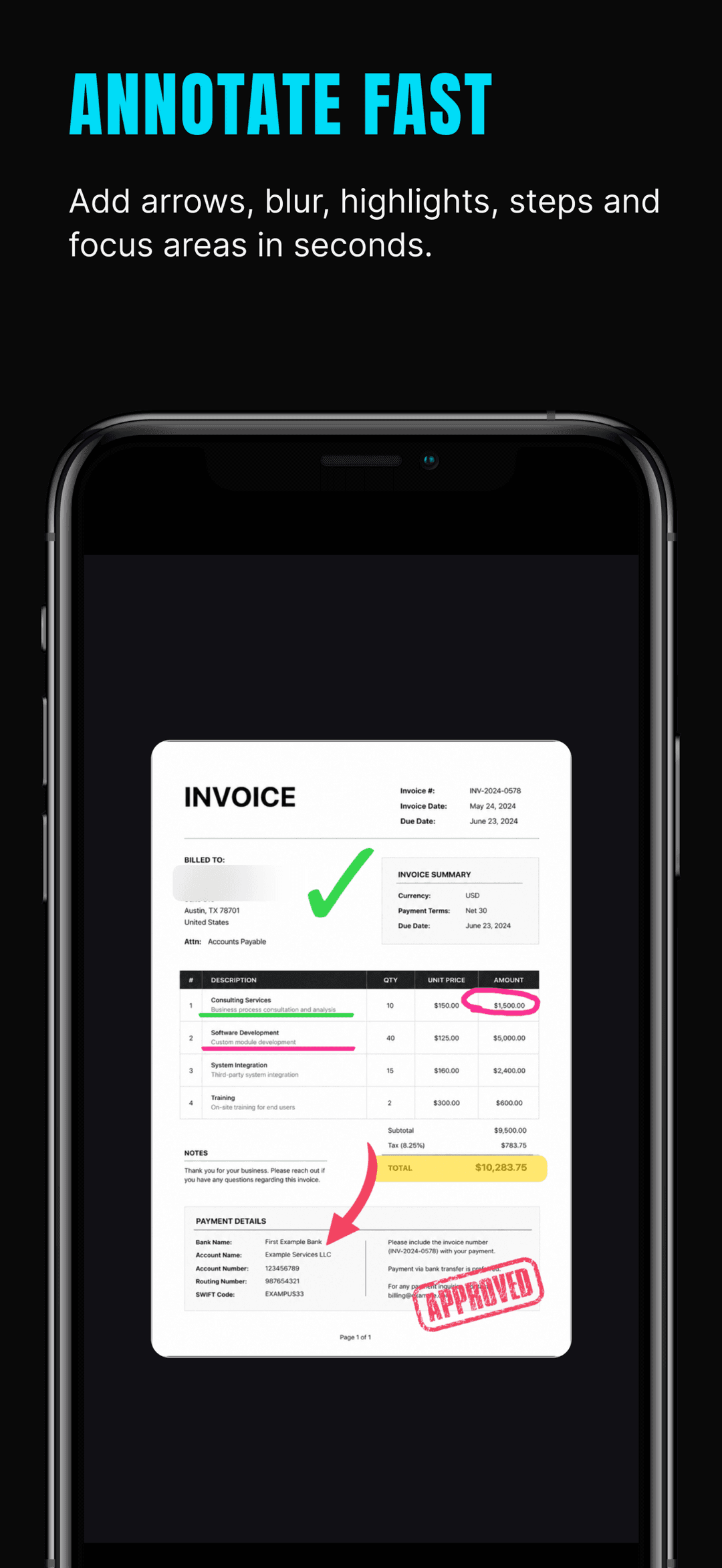
Point at what matters with arrows, boxes, highlights, step numbers, and zoom callouts. Hide emails, names, and account numbers with blur, mosaic, or redaction, and add stickers for extra context.
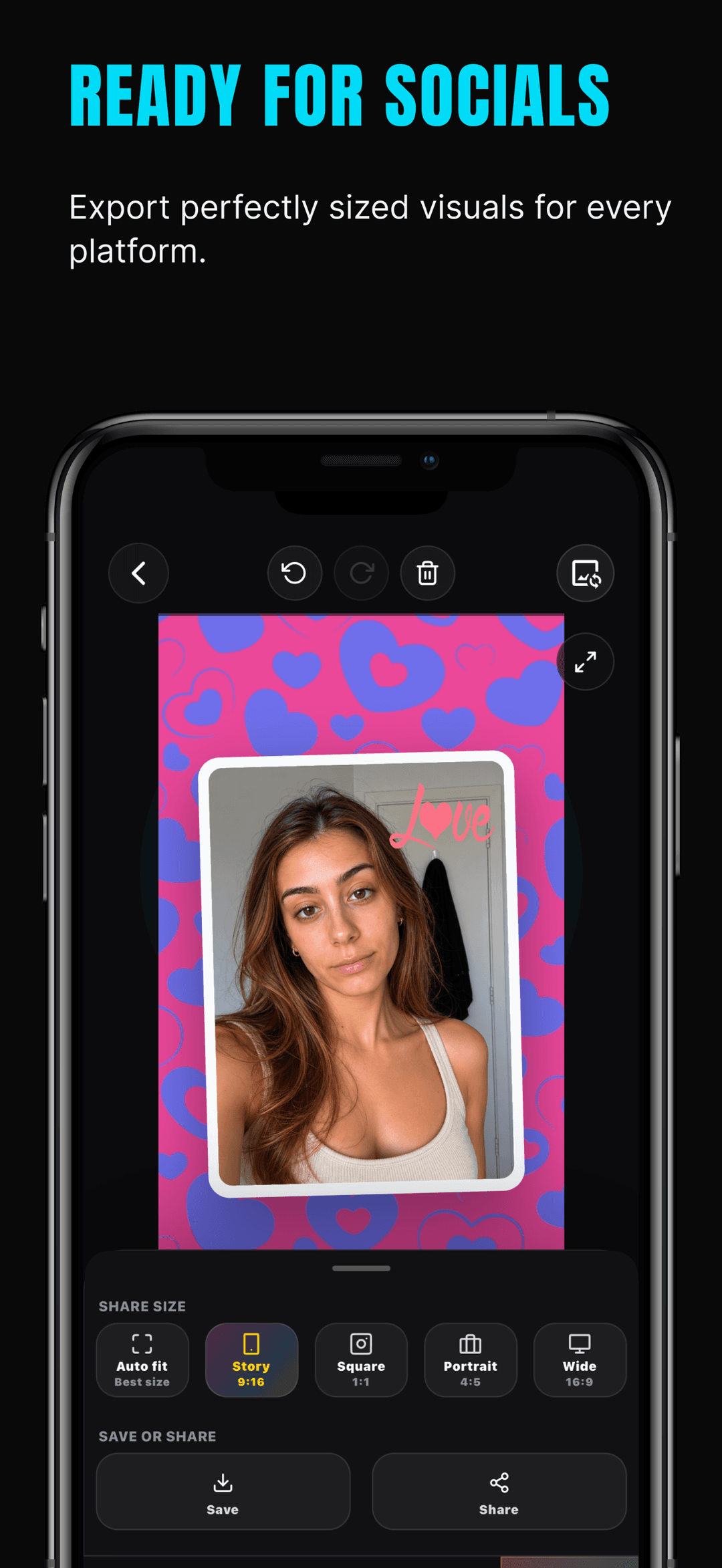
Export at the right size for the destination — Story 9:16, Square 1:1, Portrait 4:5, or Wide 16:9 — and save or share the finished visual for social posts, documentation, or app previews.
What it helps with
Turn iPhone screenshots into polished visuals. Add frames, annotations, and backgrounds, blur sensitive info, and export for social media. Free on iOS.
Import screenshots and images from your photo library, paste images, and continue editing recent projects.
Apply clean visual styles for social posts, product updates, documentation, app previews, and support messages.
Add browser, phone, photo, room, cinema, TV, floating, glass, stacked, outline, and Instagram-style frames.
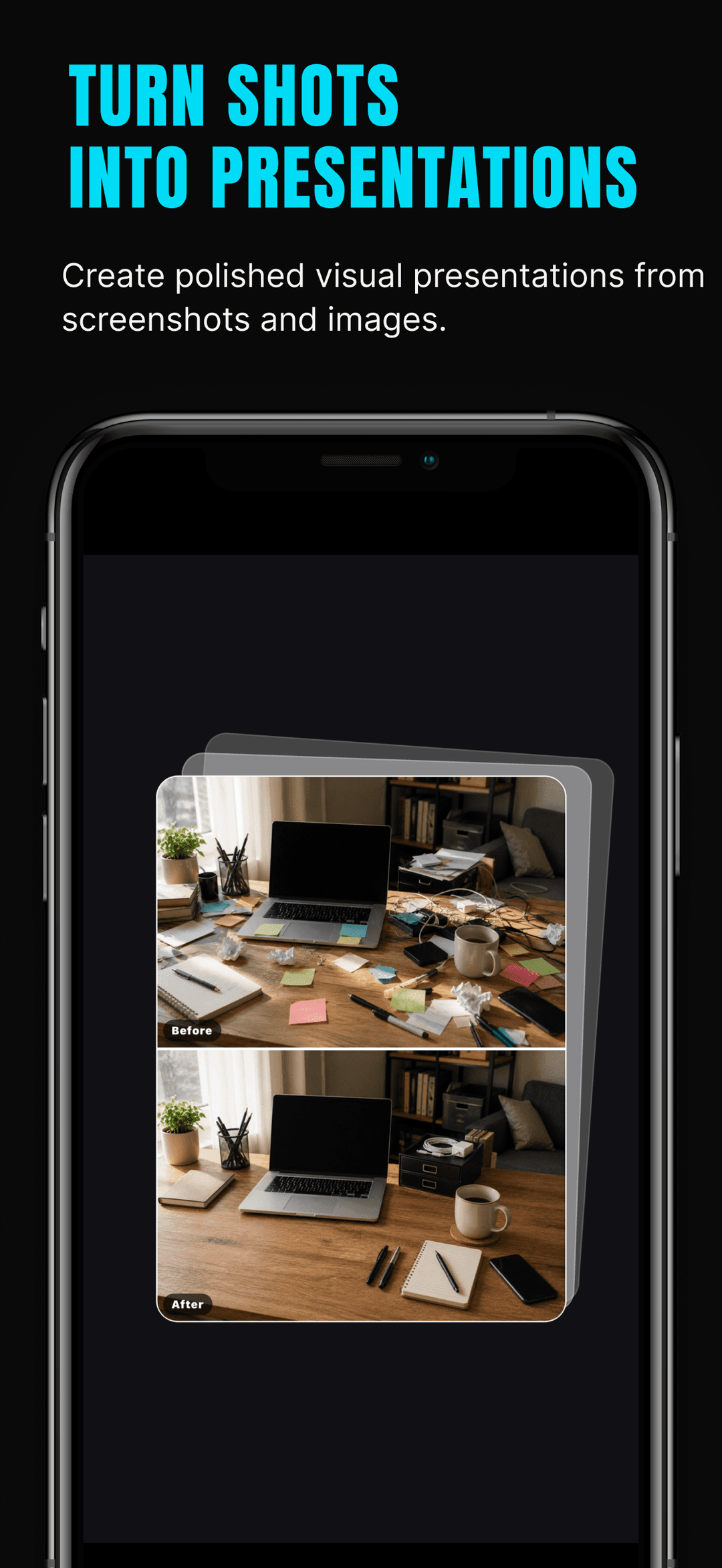
Add text, arrows, boxes, highlights, freehand drawings, step numbers, zoom callouts, and before-and-after comparisons.
Hide sensitive information with blur, mosaic, and redaction tools before sharing a screenshot.
Add stickers and supporting visual elements that make screenshots easier to understand.
Customize backgrounds, colors, gradients, patterns, shadows, spacing, corner radius, zoom, rotation, and export ratio.
Export polished images in useful formats for stories, square posts, portraits, wide layouts, presentations, and app previews.
Guides
Answers to the questions people search, with step-by-step walkthroughs.
Three ways to blur or redact private info in iPhone screenshots — Markup workarounds, blur vs mosaic vs redaction, and a one-minute app workflow.
Read guideAdd a realistic iPhone device frame to any screenshot — the Apple Frames shortcut, web mockup tools, or the ShotLab app — plus export size tips.
Read guideAnnotate iPhone screenshots with arrows, text, boxes, highlights, and step numbers — using built-in Markup or a dedicated screenshot editor.
Read guideAdd a gradient, color, or pattern background to a screenshot so it stands out on social media — quick methods plus a full iPhone workflow.
Read guideAdd numbered callouts to screenshots so readers follow your tutorial in order — docs best practices plus a fast mobile workflow with ShotLab.
Read guidePost a full screenshot on Instagram without cropping: put it on a square canvas, style the background, and export at 1080x1080 — all on iPhone.
Read guideWhy it matters
ShotLab is built for creators, founders, designers, marketers, developers, and anyone who wants better-looking screenshots without opening a complicated design tool.
The workflow stays focused: import, style, annotate, protect sensitive details, and export polished visuals in minutes.
Screenshot Scenes & Product Visuals
ShotLab helps you turn screenshots and images into finished visuals for social media, product updates, app previews, documentation, support messages, presentations, and launch assets.
Start with a screenshot or image, choose a clean visual style, add frames, annotations, highlights, privacy masks, stickers, and export a polished visual in minutes.
ShotLab includes the practical tools people expect from a fast screenshot design workflow.
ShotLab is built for creators, founders, designers, marketers, developers, and anyone who wants better-looking screenshots without opening a complicated design tool.
FAQ
Yes. ShotLab is free to download and use, and free exports may include a small ShotLab watermark. ShotLab Premium, an optional auto-renewable subscription, removes the watermark for clean, client-ready exports.
Open the screenshot in ShotLab and use the privacy tools: blur to soften an area, mosaic to pixelate it, or redaction to cover it completely. Redaction is the safest choice for account numbers, emails, and other data that must stay unreadable.
Yes. ShotLab includes phone and browser frames plus photo, room, cinema, TV, floating, glass, stacked, outline, and Instagram-style frames, so a raw screenshot reads like a finished device mockup.
Yes. ShotLab is built around importing your own images: pull screenshots and photos from your library, paste from the clipboard, or send an image to ShotLab from the iOS share sheet, then continue editing recent projects anytime.
No. Your screenshots stay on your device — importing, framing, annotating, and exporting all happen locally, and there is no account to create. ShotLab does use analytics and subscription services that handle app usage and billing data, but your images are never sent to them. See the privacy policy for full details.
Yes. ShotLab has export presets sized for social platforms — Story 9:16, Square 1:1, Portrait 4:5, and Wide 16:9 — plus an auto-fit option, so a tall screenshot can become a square Instagram post or a wide launch graphic without cropping.
Markup covers basic drawing and text. ShotLab adds device and browser frames, styled backgrounds, step numbers, zoom callouts, before-and-after comparisons, true redaction and mosaic tools, stickers, and platform-sized export presets — the pieces that make a screenshot look designed rather than just annotated.
Get started
Turn iPhone screenshots into polished visuals. Add frames, annotations, and backgrounds, blur sensitive info, and export for social media. Free on iOS.